Download the latest release.
Free, local-first, no account required. Pick your platform below.
Seeing a Windows or browser warning?
Idemora isn't yet distributed through a channel that Windows automatically trusts, so new downloads can trigger two separate, unrelated warnings. Neither means anything is wrong with the file — here's how to get past each one.
Browser warning
1. Grab the installer from GitHub
Download the .dmg for macOS or the .msi for Windows from the Releases page.
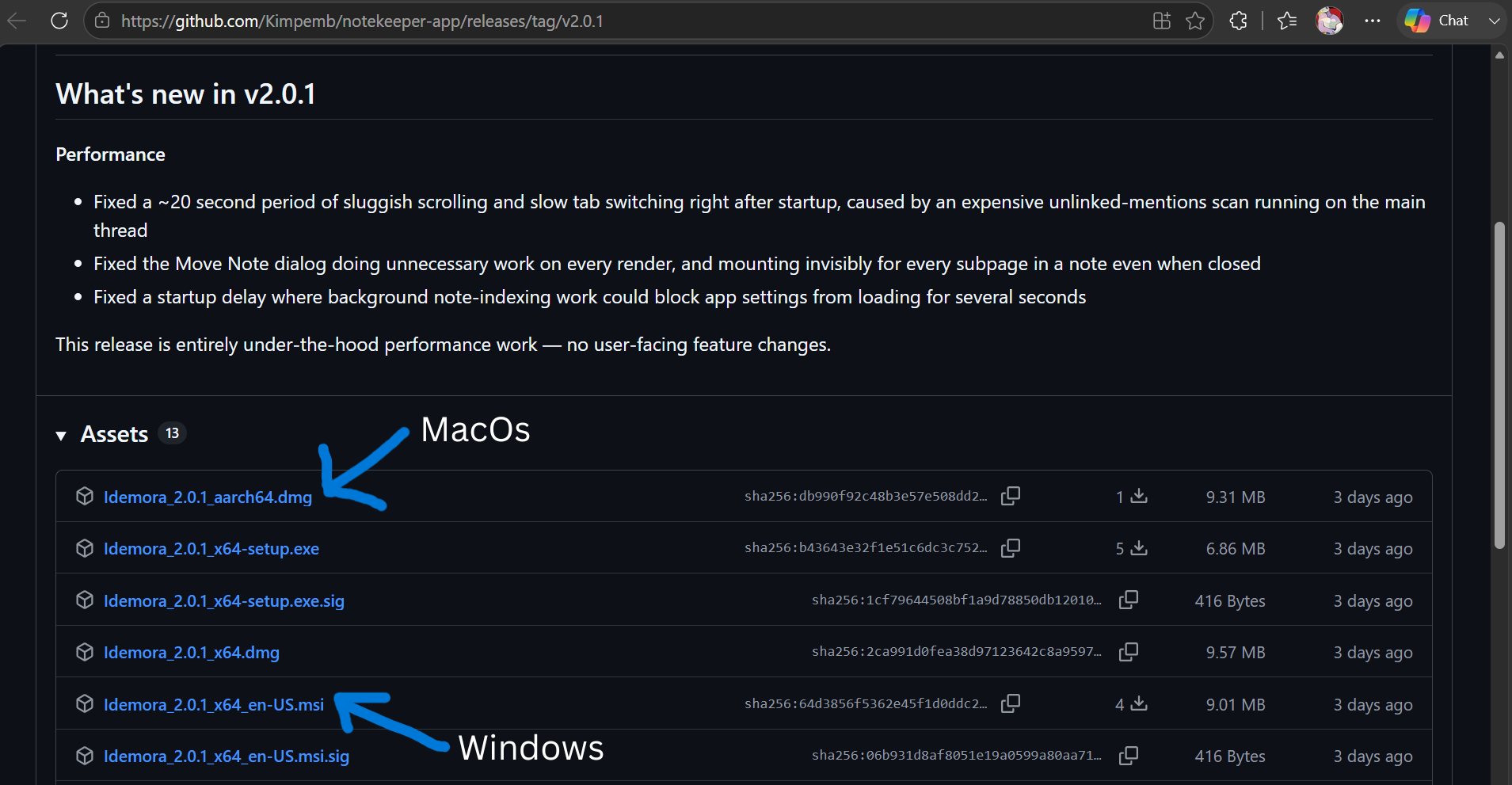
2. Your browser flags the download
Once the file finishes downloading, Chrome and Edge show a warning badge on it in your download tray. Click the ⋮ (more options) icon next to the file to continue. This is normal for installers from apps that haven't yet built up a download history with Microsoft and Google's reputation systems.
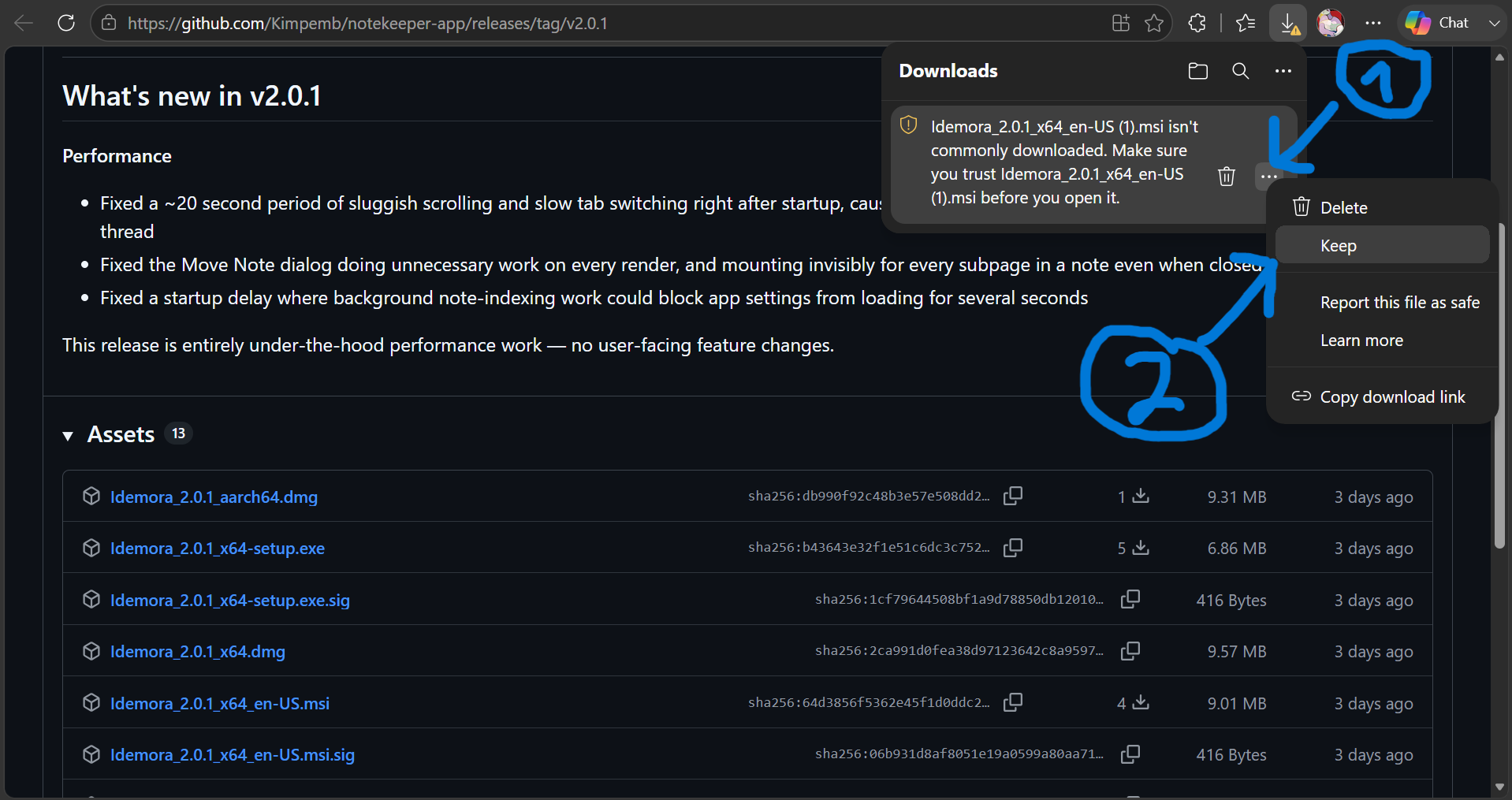
3. Choose Keep
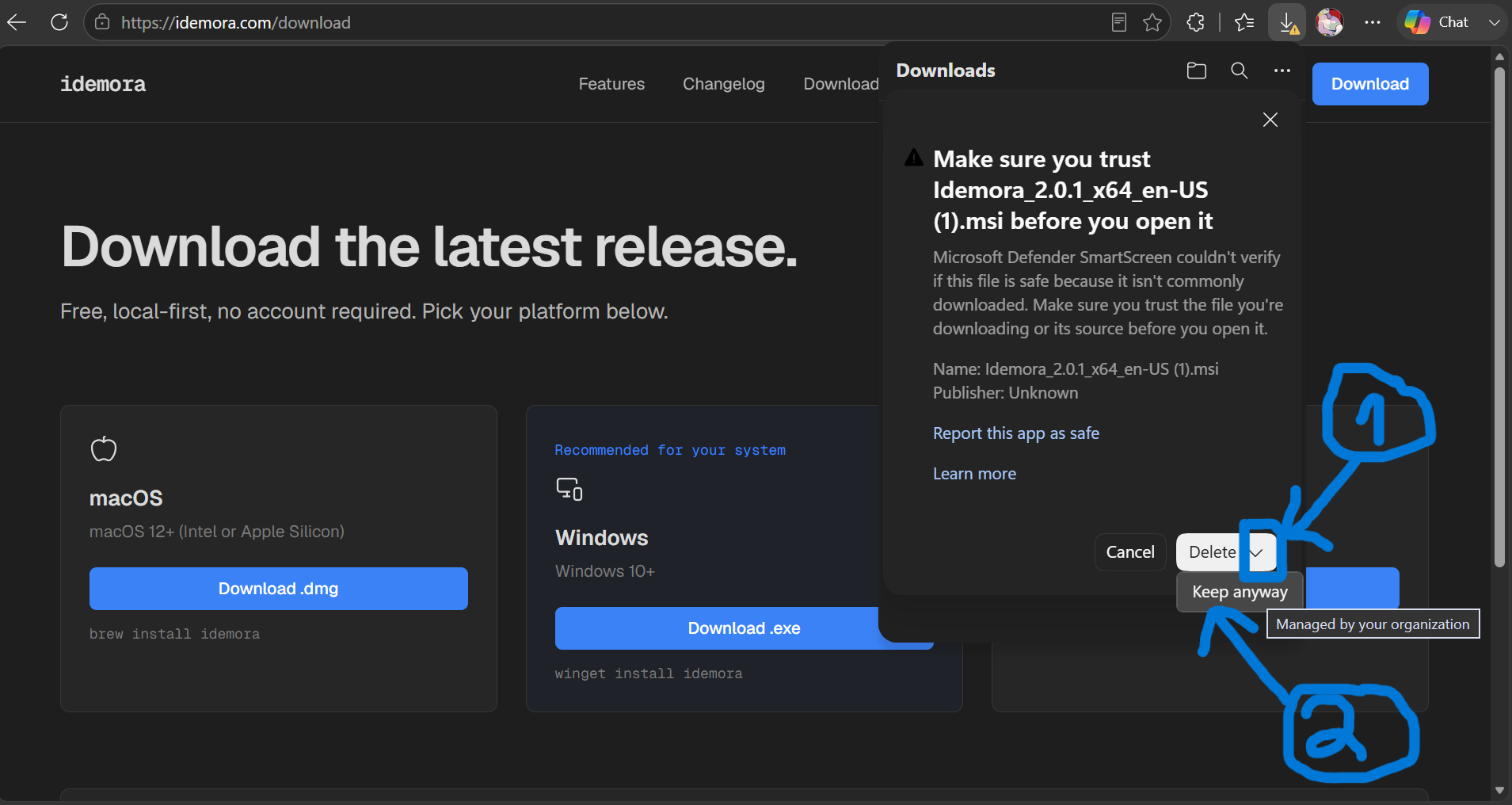
Select “Keep”, then confirm “Keep anyway” on the follow-up prompt. The file is now saved normally — you can close the download tray. When you're ready to install, double-click the file to run it.
Windows SmartScreen
If you double-click the installer and see a “Windows protected your PC” screen, click “More info” then “Run anyway.”
Auto-updater
Idemora checks for updates automatically and installs new versions in-app — signed and verified. No manual re-downloading required after your first install.